Job Tracker Extension Guide: Save Jobs and Tailor Resumes

Milad Bonakdar
Author
Learn how Minova's job tracker extension saves role details, keeps applications organized, and turns job descriptions into resume-tailoring context.
Job Tracker Extension Guide: Save Jobs and Tailor Resumes
Use the Minova job tracker extension when you want to save a role, preserve the job description, and turn that posting into resume-tailoring context. The tracker is most useful when it connects four things: the job details, your resume version, your application status, and the next action.
In simple terms: add a job before you apply if you want Minova to understand what the role asks for and help you prepare a more relevant resume.
Why Add Jobs to Minova
Job posts change, close, and sometimes disappear. Tabs get lost. Spreadsheets can work for a while, but they often separate the job description from the resume version, notes, and follow-up plan.
When you save a job in Minova, the job description becomes useful context for:
- capturing the role title, company, location, source link, and description
- identifying skills, tools, responsibilities, and seniority signals
- comparing the role with your career profile and resume
- spotting gaps your resume may need to address
- creating or connecting a tailored resume version
- keeping notes, statuses, and follow-up dates in one place
That turns a job post from a loose link into a clear application record.
What Happens After You Add a Job
Minova uses the job description to understand what the employer is asking for, then helps you decide what to do next.
For example, if a customer success role repeatedly mentions onboarding, Salesforce, renewal risk, and stakeholder communication, Minova can surface those patterns. You can then check whether your resume shows relevant proof instead of guessing which details matter.
What the Browser Extension Does
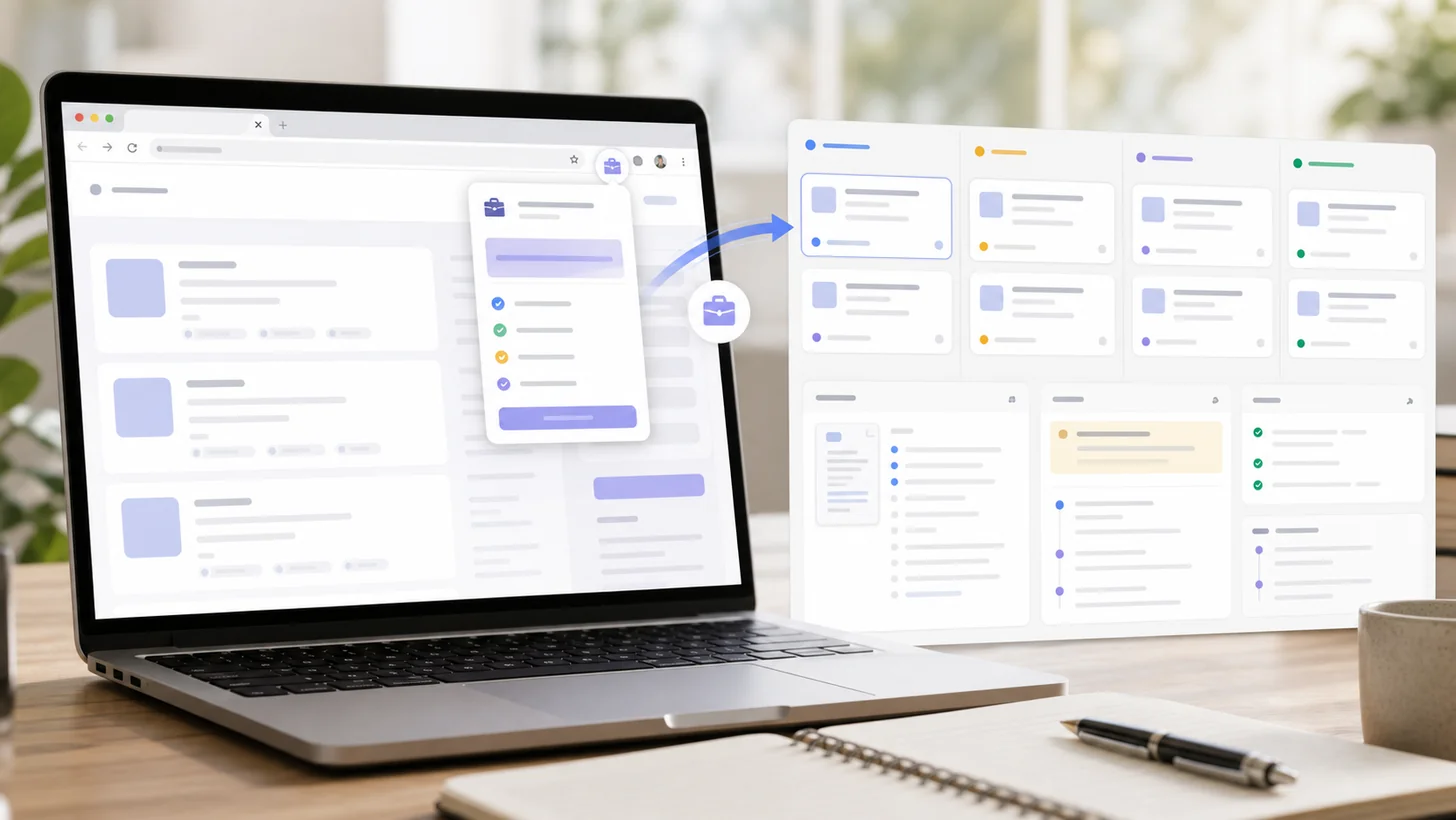
The browser extension helps you save jobs while you browse job boards and company career pages.
Instead of copying the title, company, link, and description by hand, use the extension to capture the role and send it into Minova. Review the saved details afterward, especially if the job page has unusual formatting or limited public information.
The extension is useful when:
- you are browsing many jobs quickly
- you want to save a role before the post disappears
- you do not want to keep dozens of tabs open
- you want the job description available for resume tailoring
- you want every serious opportunity in one tracker
You can still add jobs manually. The extension mainly removes copy-and-paste work.
What Minova Extracts and Analyzes
Depending on the job post, Minova may capture or infer details such as:
- role title
- company name
- location or remote status
- source URL
- job description
- responsibilities
- required skills
- nice-to-have skills
- keywords and tools
- seniority signals
Those details help you answer practical questions before you spend time applying:
- Is this job close to my background?
- Which skills should my resume emphasize?
- What keywords are missing?
- Is this a strong fit, a stretch, or not worth my time?
- Which resume version should I use?
How to Track Each Application
After the job is saved, update the tracker as the application moves forward. The goal is not to create a perfect database. The goal is to know what needs attention today.
Common statuses include:
- saved
- applying
- applied
- interview
- offer
- rejected
- archived
The exact label matters less than the next action.
Good tracking note:
Tailor resume for customer onboarding and Salesforce. Apply by Friday. Follow up with recruiter next Wednesday if no response.
Weak tracking note:
Looks good.
The better note names the resume focus, deadline, and follow-up plan.
Why Tracking and Tailoring Belong Together
Job tracking and resume tailoring should stay connected. If you save a job but do not connect the resume version, follow-ups and interview prep become harder later.
For each serious job, try to keep:
- the original job link
- the job description
- the tailored resume version
- the application status
- interview notes
- follow-up dates
- recruiter or hiring manager details
That way, when someone replies later, you are not guessing which resume you sent, what the job required, or why you applied.
Example Workflow
Here is a simple Minova workflow:
- Find a job on LinkedIn or a company career page.
- Save it with the Minova extension or add it manually.
- Let Minova extract the role details and keywords.
- Review whether the job fits your background.
- Connect a career profile and resume.
- Create a tailored resume version if the job is worth applying to.
- Mark the job as applied after you submit.
- Add the next follow-up or interview prep note.
This keeps your job search from turning into scattered tabs, filenames, and half-remembered details.
What to Track for Each Job
At minimum, track:
- company
- role title
- job link
- status
- application date
- resume version
- next action
For priority jobs, also track:
- why the role is a fit
- missing keywords or skills to address
- recruiter contact details
- interview notes
- compensation or location constraints
- follow-up timing
A Simple Decision Rule
Not every saved job needs a tailored resume. Use the tracker to separate interesting roles from serious applications.
Tailor the resume when:
- the role is a strong match or realistic stretch
- the job description names skills you can honestly prove
- the company or role is a priority
- you would want to prepare carefully if invited to interview
Archive or deprioritize the job when:
- the requirements are far outside your background
- the posting is missing basic information you need
- the location, schedule, or compensation range does not work
- you saved it only because you were browsing quickly
Common Mistakes to Avoid
Saving jobs without reviewing them
A tracker full of saved jobs can become clutter. Review saved roles regularly and archive the ones you do not plan to pursue.
Applying without analyzing the job
If you skip analysis, you may miss the skills, tools, or responsibilities that should be visible in your resume.
Forgetting which resume you sent
Always connect the resume version to the job. It helps with follow-ups and interview prep.
Leaving every job at "applied"
Update statuses as the process changes. Your tracker should show what needs attention now.
Tracking only links
A link alone may not be enough if the posting closes. Save the job description and your notes while the role is still fresh.
Frequently Asked Questions
Do I need the extension to use the job tracker?
No. You can add jobs manually. The extension is just the fastest way to capture jobs from the web.
Why should I add a job before creating a resume?
Because the job description tells Minova what the resume should be tailored toward. Without the job, Minova has less context for keywords, match scoring, and suggestions.
Can Minova track jobs I already applied to?
Yes. Add the job, set the status to applied, connect the resume version if you have it, and add any follow-up notes.
Should I save every job I see?
No. Save jobs that are worth reviewing, then archive the weak fits. A useful tracker should make your search clearer, not larger.
Best Next Step
Save one job you are seriously considering. Let Minova analyze it, review the keywords, connect a resume, and set the next action. That is when the tracker becomes more than a list: it becomes a practical application workflow.


